Choose the script
Build a board from one shooting draft or combine scripts and episodes that will shoot together.

Film production scheduling
Turn the script breakdown into a shooting schedule. Cast, locations, page counts, timings, and department requirements remain with each scene on the stripboard.
Schedule one script or several episodes, mark working and non-working days, watch for availability conflicts, and carry the locked day into breakdown reports, sides, and call sheets.
From breakdown to shooting order
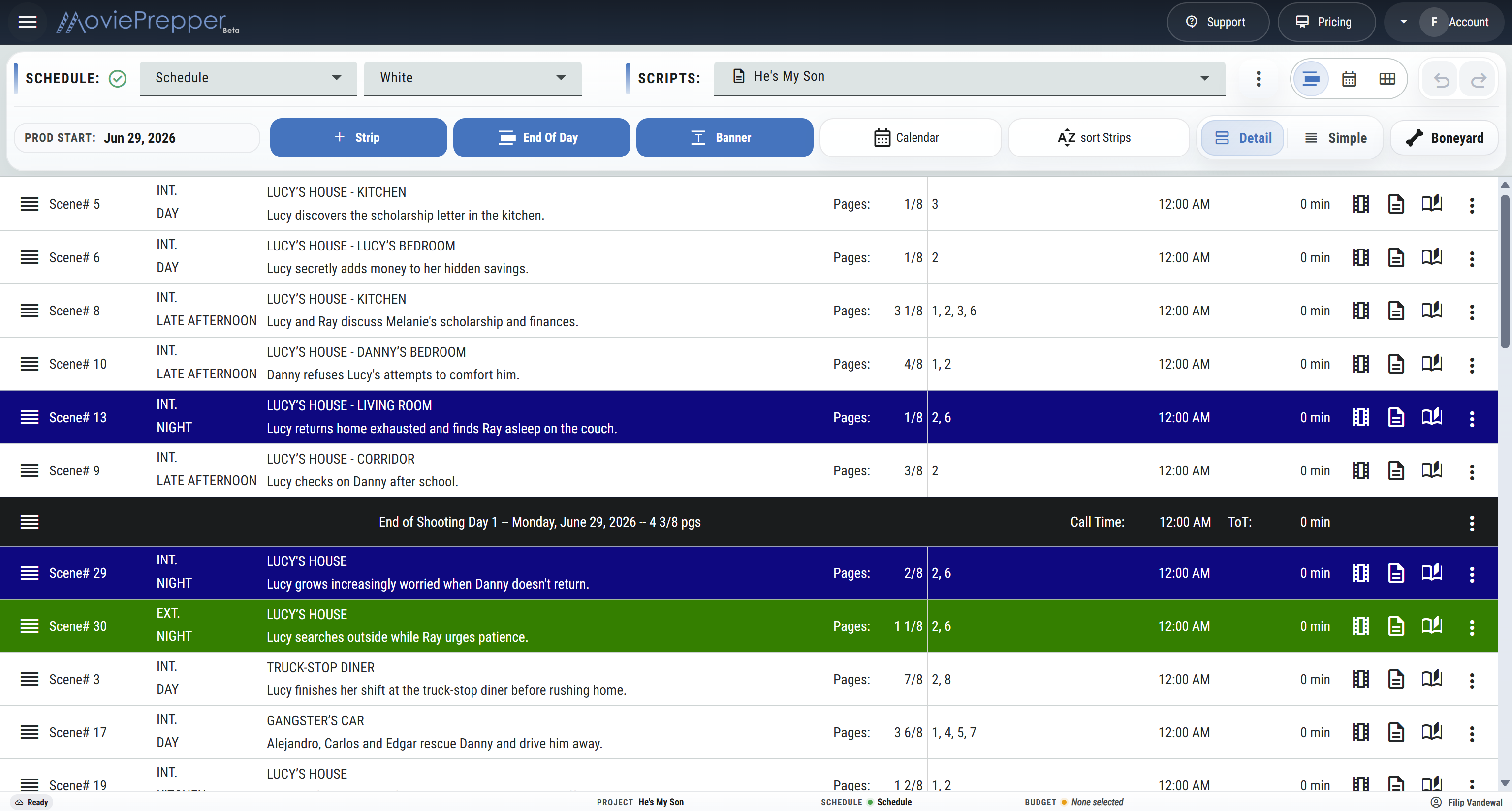
Select the scripts or episodes for the schedule and bring their strips onto one board. The scene number, slugline, INT/EXT, day/night, set, one-liner, page count, cast, breakdown elements, and shot list remain tied to the strip.
Build a board from one shooting draft or combine scripts and episodes that will shoot together.
Drag scenes into shooting order, place End Of Days, and use banners for moves, units, notes, or other production events.
Review schedule, availability warnings, and department requirements.
Print the stripboard, breakdowns, or DOOD and use the scheduled day for sides and call sheets.
The AD's work space
Move scenes between shoot days while their page counts, cast, sets, and department requirements stay attached.
Move one strip or a selected group into shooting order and rearrange the board as production conditions change.
Insert End Of Day strips to establish shoot days, dates, and the page count.
Add colored banners for company moves, meal notes, units, travel, rehearsals, or any other production event.
Keep scenes off the active schedule without losing them.
Sort ascending or descending by scene number, set, day/night, or INT/EXT, with more than one sorting condition.
Correct INT/EXT, day/night, set, one-liner, length, and estimated duration directly in the stripboard.
Enter scene durations and calculate the scheduled time per shoot day, alongside page counts.
Flag conflicts when cast, background, vehicles, props, costume, animals, or other required elements are unavailable.
Open the scene breakdown, department elements, scene, or shot list without leaving the stripboard.
Show a full production strip or a compact line, with optional warnings, cast IDs, timings, breakdown, and shot-list controls.
Step backward or forward through changes while creating the schedule.
Create alternate stripboards, identify the current schedule, and assign its production color while versions are being compared.
Production calendar
Establish prep start, first day of principal photography, and wrap. Mark weekly off days and individual holidays so the calendar advances shoot days around the production's actual working pattern.
Three production views
Each view displays a different overview of the shooting schedule.
Shows shooting order, strip colors, page count, timings, cast IDs, scene requirements, banners, and end of days in stacked strips.
See shoot days and pages across the calendar, then filter the month by scene or by a selected production element.
Show start, work, finish, hold, idle, rehearsal, and travel markings with work, hold, travel, and total-day counts per cast member.
Departmental day-out-of-days
Build a day-out-of-days for the selected department and add hold, idle days where the shooting order alone does not tell the whole story.
Schedule printouts
Prepare a stripboard, scene or shoot-day breakdown, or DOOD. Narrow reports to a script, episode, scene, shoot day, department category, or production tag before they go into the binder or production meeting.
From stripboard to set
Scenes do not need to be re-entered when they move from the schedule into call sheets.
Bring strips, cast, sets, page counts, and department requirements from the breakdown onto the stripboard.
Open the shot list for a scheduled scene to understand the workload.
Pull the screenplay pages for the selected shoot day.
Start the day's call sheet from its scheduled scenes, cast, locations.
Build the stripboard, schedule scenes into shoot days, and carry cast, locations, page counts, and department requirements into the day.
Build a Shooting Schedule