Film budgeting

Film Budgeting

Build detailed film and television budgets with top sheets, accounts, subaccounts, line items, globals, fringes, subtotals, and production-ready PDF exports.

Enter the quantity, unit, multiplier, and rate behind every cost. Revise the estimate as the schedule, crew, equipment, locations, and production requirements change.

Current BudgetFeature Estimate v4
AcctDescriptionEstimate
1000Above the Line$42,500.00
2100Director$8,000.00
3300Grip & Electric$16,750.00
Grand Total$67,250.00
Top SheetGlobalsFringesPDF

Production estimate

Start with the top sheet. Work down to every line item.

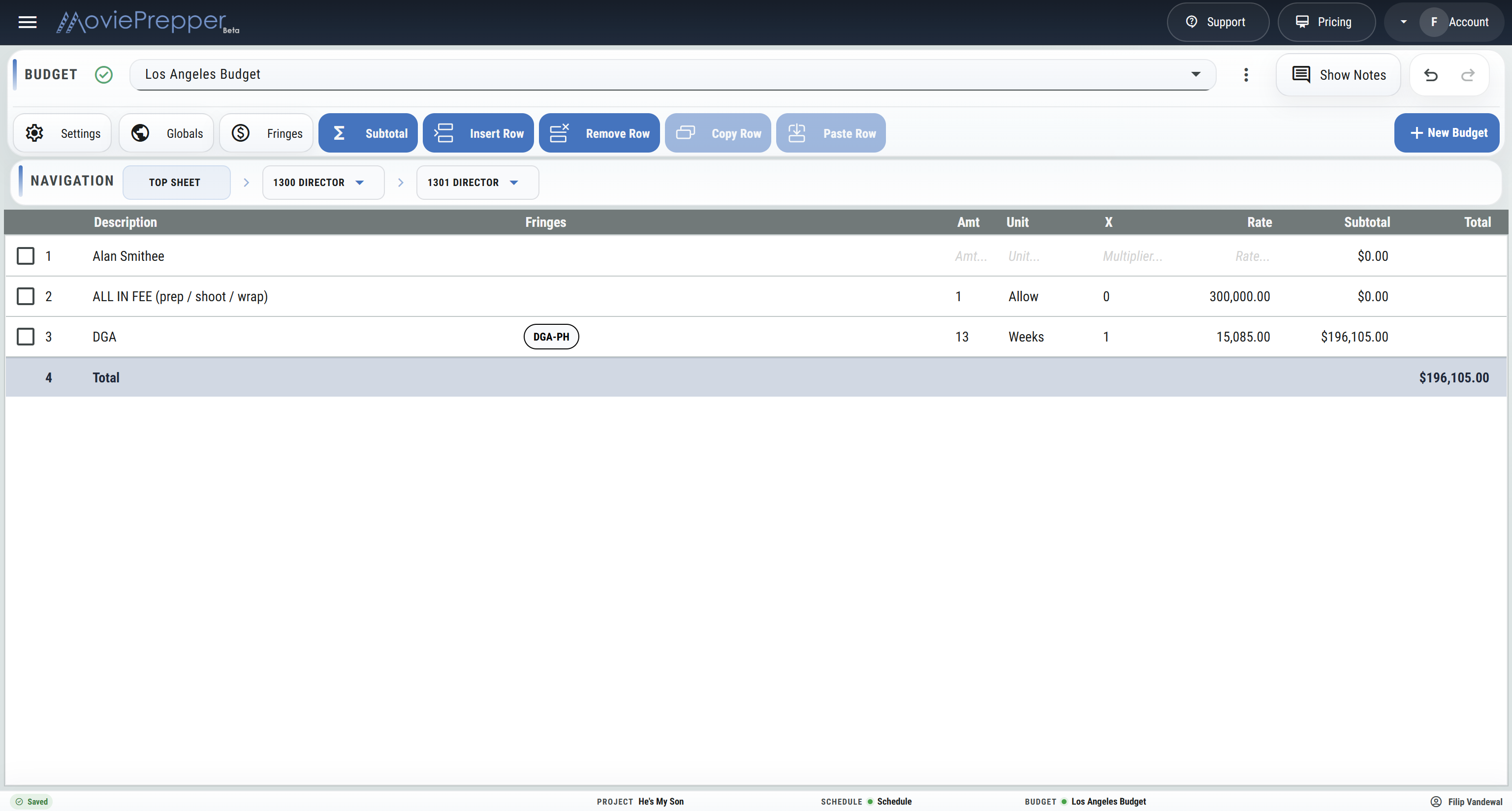
A production budget needs to show both the total cost of the show and the detail behind that number. MoviePrepper follows the account structure used in film and television budgeting: top sheet totals, category accounts, subaccounts, and individual cost lines.

Build labor, rentals, purchases, travel, locations, post-production, insurance, and other production costs using quantity, unit, multiplier, and rate fields. Add notes, insert rows, create subtotals, copy existing lines, and revise the estimate without rebuilding the budget from scratch.

01

Create the budget

Start a new production budget, duplicate an existing version, or mark the working estimate as current.

02

Build the accounts

Organize the estimate into top sheet categories, subaccounts, and detailed line items.

03

Enter the costs

Calculate each line from quantity, unit, multiplier, rate, globals, and applicable fringes.

04

Issue the budget

Review the top sheet, lock the approved version, and export a clean budget PDF.

Account-based budgeting

See the total. Open the account. Check the detail.

Move from the top sheet into each category and subaccount to see exactly where the estimate comes from. The budget remains organized whether you are reviewing the full production or working inside one department.

Top sheet

Review account totals, fringe totals, locked totals, and the complete estimated cost of production.

Accounts and subaccounts

Break major categories into the level of detail required for the production.

Line items

Enter descriptions, quantities, units, multipliers, rates, fringes, subtotals, and totals.

Subtotals

Group related costs inside an account and show the combined estimate for that section.

Budget notes

Keep deal terms, cost details, exclusions, and other supporting information with the relevant line.

Current and locked budgets

Identify the active estimate and lock a completed version when it is ready to issue.

Budget calculations

Every total should show how it was calculated

Build each cost from the figures production is actually using. Enter crew days, prep weeks, rental weeks, vehicles, hotel nights, flat fees, purchases, or any other measurable cost directly into the line item.

MoviePrepper calculates the estimate from the amount, unit, multiplier, and rate fields, then rolls that line into the account, category, and top sheet totals.

  • Budget labor by day, week, hour, flat fee, or other unit.
  • Calculate rentals from quantity, rental period, and rate.
  • Use multipliers for multiple crew members, vehicles, rooms, or units.
  • Enter negative values where credits or reductions need to be shown.
  • Read the effect of every line directly in the account total.
3300 Grip & Electric$16,750.00
Gaffer10 DAY × $650$6,500.00
Key Grip10 DAY × $600$6,000.00
Lighting Package1 FLAT × $4,250$4,250.00

Globals and fringes

Change one production value and update every linked cost

Globals are reusable numbers inside the budget. Set values such as prep days, shoot days, travel days, crew weeks, or hotel nights once, then use those values in any quantity, multiplier, or rate field.

When the schedule changes, update the global instead of editing every affected line. All linked line items recalculate from the new number.

Fringes can be created with a name, rate, unit, cutoff, calculated value, and identifying color. Apply the required fringes to selected labor lines and include the resulting cost in the account or top sheet.

  • Use globals for prep days, shoot days, weeks, rooms, vehicles, or other repeated numbers.
  • Reference globals in quantity, multiplier, and rate fields.
  • Apply payroll taxes, workers' compensation, union fringes, or other labor costs.
  • Set fringe cutoffs where the charge only applies up to a defined amount.
  • Display fringe totals in the category or as separate top sheet rows.
Globals4
PDPrep Days5
SDShoot Days12
TDTravel Days2
Fringes$4,125.00
FICA7.65%$1,530.00
Payroll5.00%$1,000.00

Budget revisions

Revise the estimate without losing the structure

Production budgets change throughout prep. Rates are negotiated, crew positions are added, rental periods move, locations change, and the number of shoot days may be revised. MoviePrepper keeps the account structure intact while the numbers are updated.

Edit selected rows

Apply the same quantity, unit, multiplier, or rate change to multiple selected lines.

Copy and paste lines

Duplicate existing costs and place them into the correct account or subaccount.

Insert rows

Add new costs exactly where they belong without rebuilding the account.

Undo and redo

Reverse or restore recent budget edits while working through a revision.

Duplicate a budget

Create a new version from an existing estimate before making major changes.

Automatic rollups

Updated lines recalculate their subtotals, accounts, categories, fringes, and grand total.

Budget reports

Export a budget that is ready to review

When the estimate is ready for the producer, financier, client, department head, or production team, export it as a formatted PDF directly from the budget.

Set the page format for the report without changing the working budget on screen.

  • Choose Letter, Legal, or A4 page size.
  • Export in portrait or landscape orientation.
  • Select the budget header color.
  • Show or hide decimal values.
  • Choose whether fringes appear in the top sheet or category totals.

Budget PDF

Page size, orientation, header color, decimals, and fringe placement.

Film budgeting FAQ

Common questions about MoviePrepper budgeting

What type of production budget can I build?

You can build film, television, commercial, documentary, branded content, short-form, and other production estimates using your own account structure and line-item detail.

Does the budget include a top sheet?

Yes. The top sheet shows the rolled-up account totals, fringe totals, and complete estimated production cost.

Can I budget by day, week, hour, or flat fee?

Yes. Each line can use the quantity, unit, multiplier, and rate required for that particular cost.

What are globals used for?

Globals store repeated production numbers such as prep days, shoot days, travel days, weeks, or hotel nights. Change the global once and every linked line recalculates.

Can I calculate fringes?

Yes. Create fringe rates, set units and cutoffs, apply them to selected lines, and include the totals in the category or top sheet.

Can I create more than one budget version?

Yes. Duplicate a budget to create a revised estimate, mark the active version as current, and lock a completed version when it is ready to issue.

Can I export the budget as a PDF?

Yes. Choose the page size, orientation, header color, decimal display, and fringe placement before exporting the report.

Can I revise several budget lines at once?

Yes. Select multiple lines and update shared quantities, units, multipliers, or rates together.

Build the estimate before the money is spent.

Create a complete production budget with top sheets, accounts, line items, globals, fringes, revisions, and formatted PDF reports.

Start Your Project